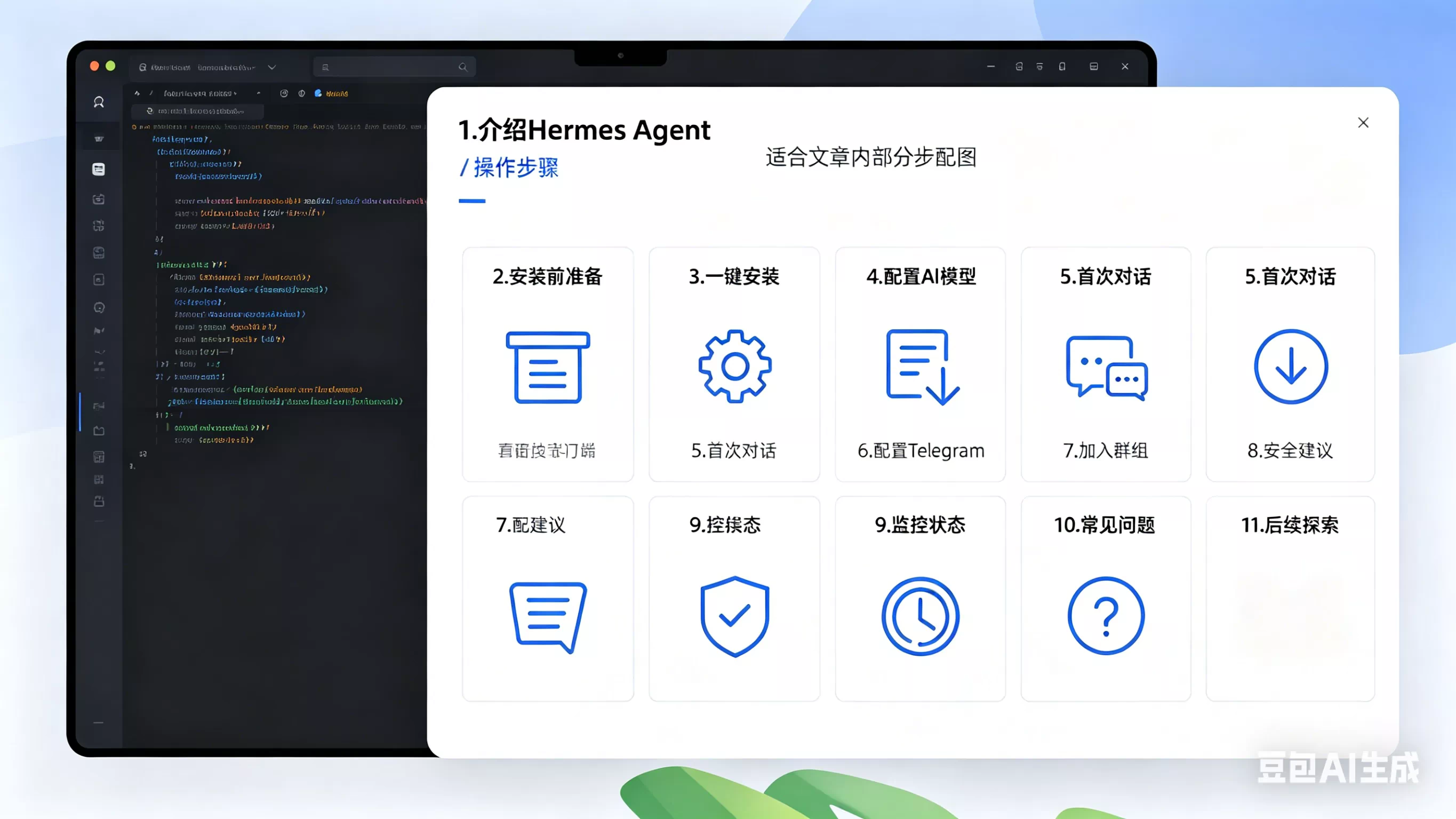
1. What is Hermes Agent?
Hermes Agent is an open-source AI assistant tool. You can think of it as a "smart command-line robot" that can:
- Answer questions, help you write code, analyze data
- Connect to chat platforms like Telegram, Discord
- Automatically execute scheduled tasks (e.g., send you a news digest every morning)
- Use various "skills" (similar to mobile apps) to extend its capabilities
Most importantly—it's very user-friendly and doesn't require programming knowledge to use.
2. Pre-installation Preparation
Before you begin installation, you need to prepare the following:
1. A Computer (Windows / Mac / Linux all work)
- Windows users: Need to install WSL2 (Windows Subsystem for Linux) first.
- Mac users: Can use the built-in Terminal directly.
- Linux users: Can use the built-in Terminal directly.
2. An LLM API Key (The "Pass" for the AI Model)
Hermes Agent needs to connect to an AI model to work. You can choose from:
| Provider | Description | How to Get |
|---|---|---|
| OpenRouter | Supports multiple models, unified entry point | openrouter.ai |
| DeepSeek | Affordable and effective | deepseek.com |
| Anthropic (Claude) | High-quality results | anthropic.com |
| OpenAI (GPT) | Established choice | openai.com |
| MiniMax | Available in China | minimax.top |
It's recommended for beginners to start with OpenRouter. After registering, copy your API key from the console.
3. Telegram Bot (Optional, if you want to chat with AI via Telegram)
This step is not mandatory, but if you want the AI to respond to your messages on Telegram, you need to create a Telegram Bot:
- Open Telegram, search for @BotFather
- Send
/newbot - Give your bot a name (e.g., "My AI Assistant")
- Then choose a username (must end with
_bot, e.g.,my_ai_helper_bot) - Once done, BotFather will give you a Token string—copy and save it.
3. One-Click Installation of Hermes Agent
Open your Terminal, copy the command below, paste it, and press Enter:
curl -fsSL https://raw.githubusercontent.com/NousResearch/hermes-agent/main/scripts/install.sh | bash
Windows Users Look Here
- Press
Win + X, select "Windows PowerShell" or "Terminal" - Install WSL2 first (if prompted)
- Then run the installation command above in the WSL2 terminal
After Installation
Reload your terminal configuration:
source ~/.bashrc   # If you use Bash
source ~/.zshrc    # If you use Zsh (macOS default)
4. Configuring the AI Model
After installation, you need to tell Hermes Agent which AI model to use.
Run the following command:
hermes model
A wizard will guide you to choose a provider. Using OpenRouter as an example:
- Select
OpenRouter - Enter your OpenRouter API key
- Choose the model you want to use (beginners are recommended to choose the default)
That's it, the AI model is now configured.
5. Starting Your First Conversation
Now, let's test if the installation was successful!
In the terminal, type:
hermes
You should see a welcome screen similar to this:
❯ Welcome to Hermes Agent!
Model: OpenRouter/gpt-4o
Tools: terminal, browser, file, ...
Type a message and press Enter to start.
Ask it any question, for example:
Hello, what can you do?
If it replies—Congratulations, installation successful!
6. Configuring Telegram (Detailed Steps)
This is the complete configuration process to make Hermes respond to you via Telegram.
6.1 Get Telegram User IDs for Team Members
Hermes's Telegram whitelist relies on numeric User IDs, not usernames. Therefore, each team member who wants to use the bot needs to get their own ID first.
Operation Method (Have each team member do this):
- Open Telegram, search for @userinfobot
- Send it any message
- It will reply with information similar to:
ID: 123456789
First name: Zhang San
- Members send their respective ID numbers (e.g.,
123456789) to you (the administrator)
Collect all member IDs; you'll need them for configuration later.
6.2 Configuration Method 1: Interactive Wizard (Simplest)
Run the following command:
hermes gateway setup
The wizard will guide you step-by-step:
- Select platform → Choose
Telegram - Bot Token → Enter the Token you got from BotFather (e.g.,
123456789:ABC-DefghijklmnoPqrstuVwxyZ) - Allowed Users → Enter the allowed user IDs, separated by commas
For example:
123456789,987654321,111222333
- Other configurations → Follow the prompts (you can press Enter to use defaults)
Configuration complete!
6.3 Configuration Method 2: Manually Write Environment Variables
If you prefer managing configurations manually, you can write them to the ~/.hermes/.env file.
Create/Edit the configuration file:
nano ~/.hermes/.env
Write the following content:
# Telegram Bot Token (obtained from BotFather)
TELEGRAM_BOT_TOKEN=123456789:ABC-DefghijklmnoPqrstuVwxyZ

# Allowed user IDs, separated by commas
TELEGRAM_ALLOWED_USERS=123456789,987654321,111222333
Save the file (Ctrl + O, then Enter, then Ctrl + X).
6.4 Configuration Method 3: Private Message Pairing (Recommended for Teams)
If you don't want to collect user IDs in advance, private message pairing is a more flexible option. The workflow is as follows:
Step 1: Team member sends a private message
The team member opens Telegram, finds your bot, and sends it any message.
Since this user is not yet on the whitelist, the bot will automatically reply with a one-time pairing code:
🔐 Pairing Code: xxxxxxx
Please send this code to the bot administrator for approval.
Step 2: Member sends the pairing code to you
The team member sends this pairing code (e.g., XKGH5N7P) to you via any method—Slack, email, WeChat, or in person.
Step 3: You approve on the server
Run the following command in your server terminal:
hermes pairing approve telegram xxxxxxx
Step 4: Takes effect immediately
After approval, that member can immediately start a conversation with the bot, and the bot will respond normally to their messages.
Advantages: No need to collect user IDs in advance, approval on demand, suitable for teams with changing members.
Disadvantages: Requires manual approval for first-time use, which can be slightly cumbersome if there are many members.
If you want to view the status of all current pairing requests, you can run:
hermes pairing list
6.5 Start the Telegram Gateway
After configuration, start the gateway:
hermes gateway
You should see output similar to:
Gateway started: Telegram
Bot: @my_ai_helper_bot
Listening for messages...
6.6 Test the Telegram Bot
Open Telegram, find your bot, and send it a private message, for example:
Hello
If the bot replies—Excellent! Configuration successful!
Have each member on the whitelist test it to confirm they all receive replies normally.
6.7 Set Up Auto-start on Boot (Run in Background)
If you want the gateway to run continuously, even when the terminal is closed, you can install it as a system service:
hermes gateway install
On a Linux server, you can also use a system-level installation:
sudo hermes gateway install --system
7. Adding the Bot to a Group (Optional)
If you want to add the bot to a group besides private chats, note the following points.
7.1 Telegram Privacy Mode
By default, Telegram bots have Privacy Mode enabled. This means in groups, the bot can only see:
- Slash commands (e.g.,
/help) - Messages that are replies to the bot
- System messages
The bot cannot see ordinary chat messages.
7.2 Allowing the Bot to Read All Group Messages
If you want the bot to respond to all messages in the group, you have two options:
Option 1: Disable Privacy Mode via BotFather
- In Telegram, search for @BotFather
- Send
/mybots - Select your bot
- Click "Bot Settings" → "Privacy mode" → Turn it OFF
Option 2: Make the Bot a Group Administrator
- Open group settings → Add members → Add your bot
- Set the bot as an administrator
⚠️ Important: After modifying privacy mode, you need to remove the bot from the group and re-add it for Telegram to refresh the settings.
8. Security Recommendations (Must-Read for Team Use)
The biggest difference between a team bot and a personal bot is: it needs to be more stable and restrained. It is recommended to at least do the following:
1. Initially, only allow explicitly needed people
Do not publicly share the bot Token or arbitrarily expand the whitelist. Only allow people who genuinely need it to use it.
2. Enable high-risk tools cautiously
Before the team is familiar with the bot, do not enable terminal or file write capabilities to avoid accidental operations.
3. Use Docker Isolation (Advanced)
If your assistant needs to perform high-privilege operations like using the terminal or shell, it's recommended to use Docker isolation.
Edit ~/.hermes/config.yaml:
terminal:
  backend: docker
  container_cpu: 1
  container_memory: 5120
  container_persistent: true
Or use environment variables (write to ~/.hermes/.env):
TERMINAL_BACKEND=docker
TERMINAL_DOCKER_IMAGE=nikolaik/python-nodejs:python3.11-nodejs20
4. Start with private chats, then expand to groups
First, verify the bot is stable and reliable in private chat mode, then gradually expand to group use.
9. Monitoring Gateway Status
Check running status:
hermes gateway status
View real-time logs on a Linux server:
journalctl --user -u hermes-gateway -f
macOS or regular log mode:
tail -f ~/.hermes/logs/gateway.log
10. Frequently Asked Questions
Q: What if the installation command reports an error?
Check your network: Make sure your computer can access GitHub (you might need a proxy).
Check permissions: If prompted with a permission error, add sudo before the command:
sudo curl -fsSL https://raw.githubusercontent.com/NousResearch/hermes-agent/main/scripts/install.sh | bash
Q: hermes model keeps reporting an API key error?
- Check if the API key was copied completely (no extra spaces)
- Check if the key still has quota
- Try switching to a different model
Q: The Telegram bot doesn't respond?
- Check if the Token is correct
- Check if the whitelist includes your user ID (Note: it's the numeric ID, not the username)
- Check if the gateway is running normally (no error messages)
Q: The bot doesn't respond in the group?
- Check if Privacy Mode is disabled (or if the bot is set as an administrator)
- Remember to remove the bot and re-add it to the group
Q: How to change the AI model?
Run hermes model anytime to re-select; it won't affect your other configurations.
11. What to Explore Next
- Scheduled Tasks: Have the AI automatically send you a digest every morning
Send me a news digest every morning at 9 AM - Skill Library:
hermes skills searchcan search for various extension capabilities - Voice Mode: Have the AI read replies aloud to you, or use voice input directly
- Personalization: Create your own SOUL.md to give the AI a unique personality
Summary
Following the steps above, you should have:
- ✅ Installed Hermes Agent
- ✅ Configured the AI model
- ✅ Tested your first conversation
- ✅ Configured the Telegram bot
- ✅ Learned how to add it to groups and ensure security
Now you have a powerful team AI assistant. Explore slowly, and you'll find it can do much more than you imagined!
If you have questions, feel free to ask on Discord or GitHub Discussions.