


What is Ollama?
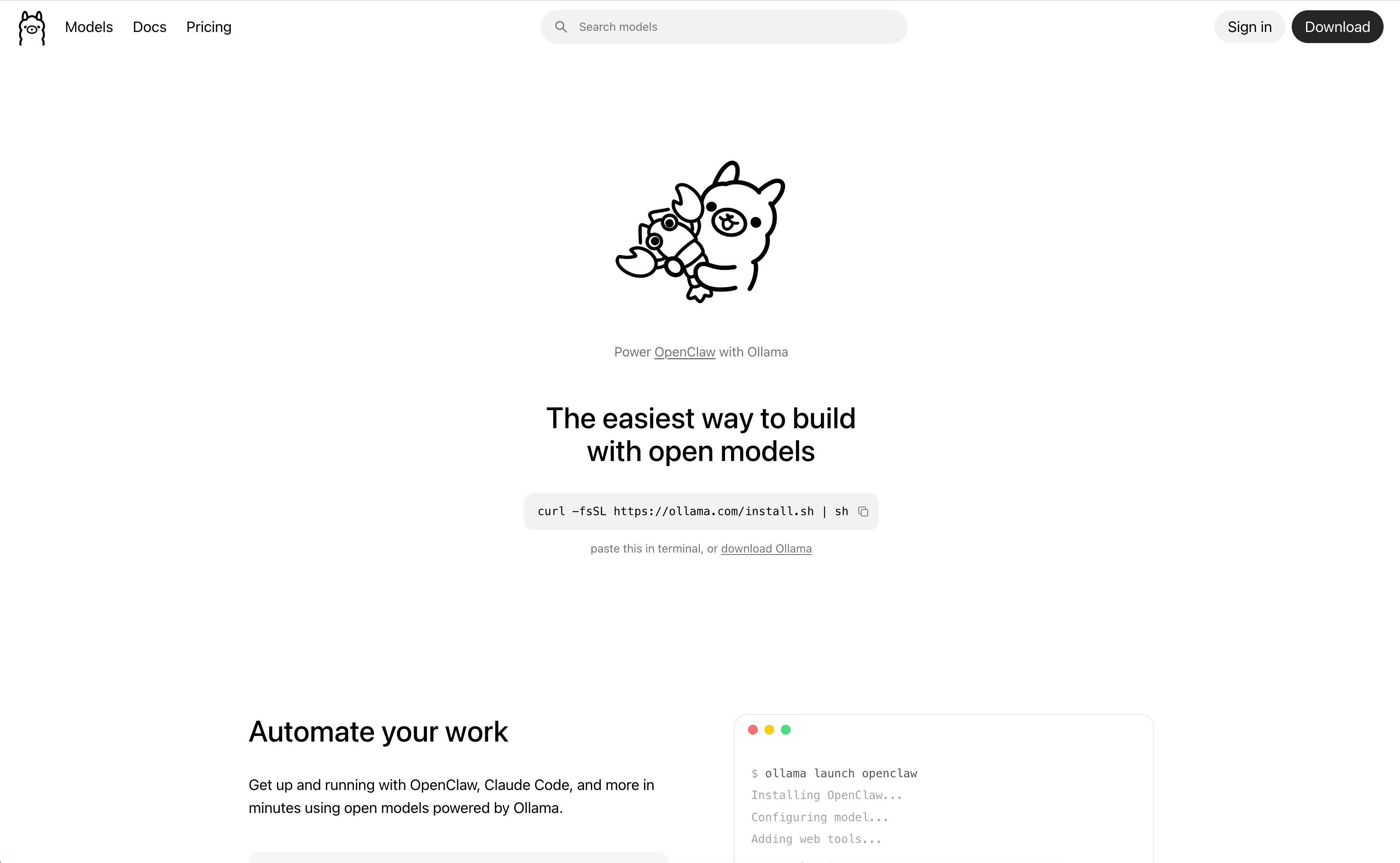
Ollama is an open-source local large language model (LLM) runtime framework. Its core design philosophy is simple: to enable anyone to run AI models on their personal computers.
Before Ollama, running large models like Llama or Mistral locally required complex dependency configurations and CUDA environment setup. Ollama abstracts all of this into just a few simple commands:
# After installation, just this line runs an AI
ollama run llama3.1
That's it!
Why Choose Ollama?
🎯 Core Advantages
| Feature | Ollama | Traditional Approach (PyTorch + Transformer) |
|---|---|---|
| Installation Difficulty | ⭐️ One-click install | ⭐️⭐️⭐️⭐️⭐️ Requires complex environment setup |
| Resource Usage | Automatically optimized | Manual tuning required |
| Model Support | Dozens of pre-trained models available | Each model requires individual configuration |
| Update Speed | New models added weekly | Manually download weight files |
| API Support | Built-in RESTful API | Requires additional service setup |
💡 Use Cases
- 🔐 Privacy First: Data stays local; nothing is uploaded to the cloud
- 💰 Cost Savings: No need to pay for API call fees
- 🏃 Low Latency: Fast response times without network transmission delays
- 🧪 Developer Friendly: Ideal for rapid prototyping and experimentation
System Requirements
Minimum Configuration
- CPU: 64-bit processor (x86_64 or ARM64)
- Memory: 8GB RAM
- Storage: At least 10GB free space (add ~5–20GB per additional model)
Recommended Configuration
- CPU: Apple M1/M2/M3 chips or Intel Core i7 / Ryzen 7 and above
- Memory: 16GB RAM or more (32GB+ recommended for running large models)
- GPU: NVIDIA RTX 3060 12GB or higher (optional, but accelerates inference)
Supported Operating Systems
✅ macOS: 12.0 (Monterey) and above
✅ Linux: Ubuntu 20.04+, Debian 11+, Fedora 36+
✅ Windows: Windows 10/11 (64-bit), requires WSL2 or direct installer
macOS Installation Steps
Method 1: Official Installer (Recommended for Beginners)
This is the simplest method, suitable for most Mac users.
Step 1: Download the Installer
Open Terminal and run:
# Visit the official download page
open https://ollama.com/download
Or visit https://ollama.com/download in your browser.
You'll see two options:
- Apple Silicon (M1/M2/M3): Choose this if your Mac was purchased after 2020
- Intel Mac: Choose this for older Mac models
Click the download button to get a .pkg installer file.
Step 2: Run the Installer
Double-click ollama-darwin-x86_64.pkg or ollama-darwin-arm64.pkg.
The installer will prompt:
Welcome to the Ollama Installer
--------------------------------
A launch agent will be created with default installation path at /Applications/Ollama.app
Continue? [Y/n]
Type Y and press Enter to confirm.
Step 3: Verify Installation
Open Terminal and run:
ollama --version
If you see output like ollama version 0.5.2, the installation was successful!
Method 2: Homebrew Installation (For Developers)
If you prefer managing apps via Homebrew:
# Install Homebrew if not already installed
/bin/bash -c "$(curl -fsSL https://raw.githubusercontent.com/Homebrew/install/HEAD/install.sh)"

# Install Ollama
brew install ollama
Linux Installation Steps
Method 1: Official Script Installation (Universal)
Works on almost all Linux distributions.
Step 1: Run the Installation Script
# Run the script with root privileges
curl -fsSL https://ollama.com/install.sh | sh
The script automatically detects your system type and selects the appropriate installation method.
Note: If using a non-root user, elevate privileges first:
sudo curl -fsSL https://ollama.com/install.sh | sh
Step 2: Start the Ollama Service
After installation, Ollama starts automatically via systemd. You can check its status:
# Check service status
systemctl status ollama

# If not running, start manually
sudo systemctl start ollama

# Enable auto-start on boot
sudo systemctl enable ollama
Example output:
● ollama.service - Ollama Service
     Loaded: loaded (/etc/systemd/system/ollama.service; enabled)
     Active: active (running) since Mon 2026-04-15 10:30:00 CST
Step 3: Verify Installation
ollama --version
Method 2: Docker Containerized Installation
If you have Docker installed, you can also run Ollama in a container:
# Pull the image
docker pull ollama/ollama

# Run the container
docker run -d -v ollama:/root/.ollama -p 11434:11434 --name ollama ollama/ollama
Windows Installation Steps
Method 1: Direct Installer (Windows 10/11)
Step 1: Download the Installer
Visit https://ollama.com/download in your browser and click the download button for the Windows version.
After downloading, you'll receive an ollama-setup.exe file.
Step 2: Run the Installation Wizard
Double-click ollama-setup.exe. The wizard will ask:
- Installation Location: Defaults to
C:\Program Files\Ollama; proceed as-is - Create Desktop Shortcut: Recommended to check
- Associate Model Folder: Keep default settings
Once complete, Ollama will start automatically in the background.
Step 3: Use from Command Line
Open PowerShell or CMD and run:
ollama --version
Method 2: WSL2 Installation (Linux Environment on Windows)
To use a Linux environment:
# 1. Ensure WSL2 is installed
wsl --install

# 2. Enter the WSL subsystem (Ubuntu)
wsl

# 3. Follow the Linux installation steps above
curl -fsSL https://ollama.com/install.sh | sh
First Run and Model Download
Now that installation is complete, let's run our first AI model!
Step 1: Start Ollama
On graphical systems (macOS/Windows), Ollama runs as a background service. Confirm the process exists via Task Manager or Activity Monitor.
On Linux servers, ensure the service is running:
systemctl status ollama
Step 2: Run Your First Model
In the terminal, enter:
ollama run llama3.1
On first run, Ollama will:
- Check if
llama3.1exists locally - If not, automatically download it from Hugging Face (~4.7GB)
- Load it into memory and begin chatting
Wait patiently for the download to finish—typically 3–5 minutes depending on internet speed.
Step 3: Try the Conversation
Once loaded, you'll see:
>>>
Now you can start asking questions! For example:
Hello, please introduce yourself
Llama 3.1 will respond naturally. Try more complex queries:
Write a quicksort algorithm in Python and explain each step
Press Ctrl+C to exit the conversation or type /bye to end the session.
Step 4: List Installed Models
ollama list
Example output:
NAME            ID              SIZE    MODIFIED
llama3.1        8a7b9e...       4.7 GB  2 hours ago
Step 5: Remove Unwanted Models
ollama rm llama3.1
Recommended Models
Ollama supports dozens of open-source models. Here are some top picks:
🧠 All-Purpose Large Models
| Model Name | Size | Features | Best For |
|---|---|---|---|
| llama3.1 | 4.7GB | Meta's latest, best overall performance | Daily chat, writing, coding |
| llama3.1:70b | 40GB | Larger version, smarter but resource-heavy | Tasks requiring high intelligence |
| mistral | 4.1GB | Strong European open model, excellent code support | Programming assistance |
| gemma2:9b | 5.6GB | From Google, strong multilingual capabilities | Cross-language tasks |
💻 Coding-Specific
| Model Name | Size | Features |
|---|---|---|
| codellama | 3.8GB | Specialized in code generation and debugging |
| deepseek-coder | 2.9GB | Excellent understanding of Chinese code comments |
| starcoder2 | 3.8GB | Supports multiple programming languages |
📱 Small & Efficient
| Model Name | Size | Features |
|---|---|---|
| phi3 | 2.3GB | Microsoft lightweight model, extremely fast |
| tinyllama | 0.4GB | Tiny size, ideal for testing |
| qwen2:0.5b | 0.4GB | From Alibaba, smallest yet useful |
🚀 Quick Start Recommendations
Beginner Users (standard laptop):
# Most balanced choice
ollama run llama3.1

# Or faster and smaller
ollama run phi3
Developers:
# Coding-focused
ollama run codellama

# Bilingual (Chinese/English)
ollama run qwen2:7b
Pro Users (high-end PC):
# Maximum capability
ollama run llama3.1:70b
API Usage
Ollama includes a simple RESTful API for easy integration into your applications.
Starting the API Service
By default, as long as Ollama is running, the API is available at http://localhost:11434.
Basic API Endpoints
1. Generate Response (Chat)
HTTP Request:
curl http://localhost:11434/api/generate -d '{
  "model": "llama3.1",
  "prompt": "Explain the basic principles of quantum computing",
  "stream": false
}'
Python Example:
import requests

response = requests.post('http://localhost:11434/api/chat', json={
    'model': 'llama3.1',
    'messages': [{'role': 'user', 'content': 'Hello'}]
})

print(response.json()['message']['content'])
2. List Available Models
curl http://localhost:11434/api/tags
3. Copy a Model
curl http://localhost:11434/api/copy -d '{
  "source": "llama3.1",
  "destination": "my-llama"
}'
Using the Python Client
Install dependencies:
pip install ollama
Usage example:
import ollama

# Simple chat
response = ollama.chat(model='llama3.1', messages=[
  {
    'role': 'user',
    'content': 'Write a Fibonacci sequence in Python',
  },
])

print(response['message']['content'])
Advanced Configuration
Environment Variables
# Customize model storage path
export OLLAMA_MODELS="/data/ollama/models"

# Specify GPU device (CUDA)
export CUDA_VISIBLE_DEVICES=0,1

# Adjust batch size (impacts performance and memory usage)
export OLLAMA_NUM_PARALLEL=4

# Set log level
export OLLAMA_DEBUG=true
Customizing Models with Modelfile
You can modify parameters based on existing models:
Create a Modelfile
FROM llama3.1

# Set temperature (creativity)
PARAMETER temperature 0.7

# Set context length
PARAMETER num_ctx 4096

# System instruction
SYSTEM "You are a professional programming assistant who always provides concise and accurate code solutions."
Build the Custom Model
ollama create my-coder -f Modelfile
ollama run my-coder
Docker Persistent Storage Configuration
# Mount external storage
docker run -d \
  -v /your/host/path:/root/.ollama \
  -p 11434:11434 \
  --name ollama \
  ollama/ollama
Troubleshooting
Issue 1: Command Not Found After Installation
Symptoms: command not found: ollama
Solutions:
-
Check PATH environment variable:
echo $PATH | grep ollama -
Reinstall:
# macOS brew reinstall ollama # Linux sudo systemctl restart ollama -
Restart Terminal: Sometimes closing and reopening the terminal window is necessary.
Issue 2: Model Download Timeout or Failure
Symptoms: Download hangs or fails
Solutions:
-
Check Network Connectivity: Ensure access to GitHub and HuggingFace
ping huggingface.co -
Use Domestic Mirror Sources (for users in mainland China only):
export HF_ENDPOINT=https://hf-mirror.com -
Resume Download: Delete failed files and retry
ollama pull --help # View download progress options
Issue 3: Out of Memory
Symptoms: out of memory error
Solutions:
-
Use Smaller Models:
ollama run phi3 # Much smaller than llama3.1 -
Close Other Applications: Free up more memory
-
Limit Concurrency:
export OLLAMA_NUM_PARALLEL=1
Issue 4: GPU Not Enabled
Symptoms: Model runs slowly
Solutions:
-
Check GPU Detection:
nvidia-smi # For NVIDIA users system_profiler SPDisplaysDataType # For Mac users -
Confirm Drivers Are Working: Ensure graphics drivers are properly installed
-
Force Specification via Environment Variable:
export ROCM_PATH=/opt/rocm # For AMD GPUs
Issue 5: Port Conflict
Symptoms: address already in use
Solutions:
-
Find the Occupying Process:
lsof -i :11434 -
Kill the Process or Change Port:
kill -9 <PID>

# Or start on a different port
ollama serve --port 11435
Summary
Congratulations! You've completed the full Ollama installation journey. You now know how to:
✅ Install on three platforms: macOS, Linux, or Windows
✅ Choose and run models: From llama3.1 to phi3, pick what fits your needs
✅ Integrate APIs: Call AI directly from your own projects
✅ Troubleshoot common issues: Fix typical errors confidently
🎉 Next Steps
- Try Different Models: Compare performance across various models
- Explore API Features: Integrate AI into your website or app
- Share Your Experience: Write a blog post about your journey
- Join the Community: Follow Ollama GitHub for updates