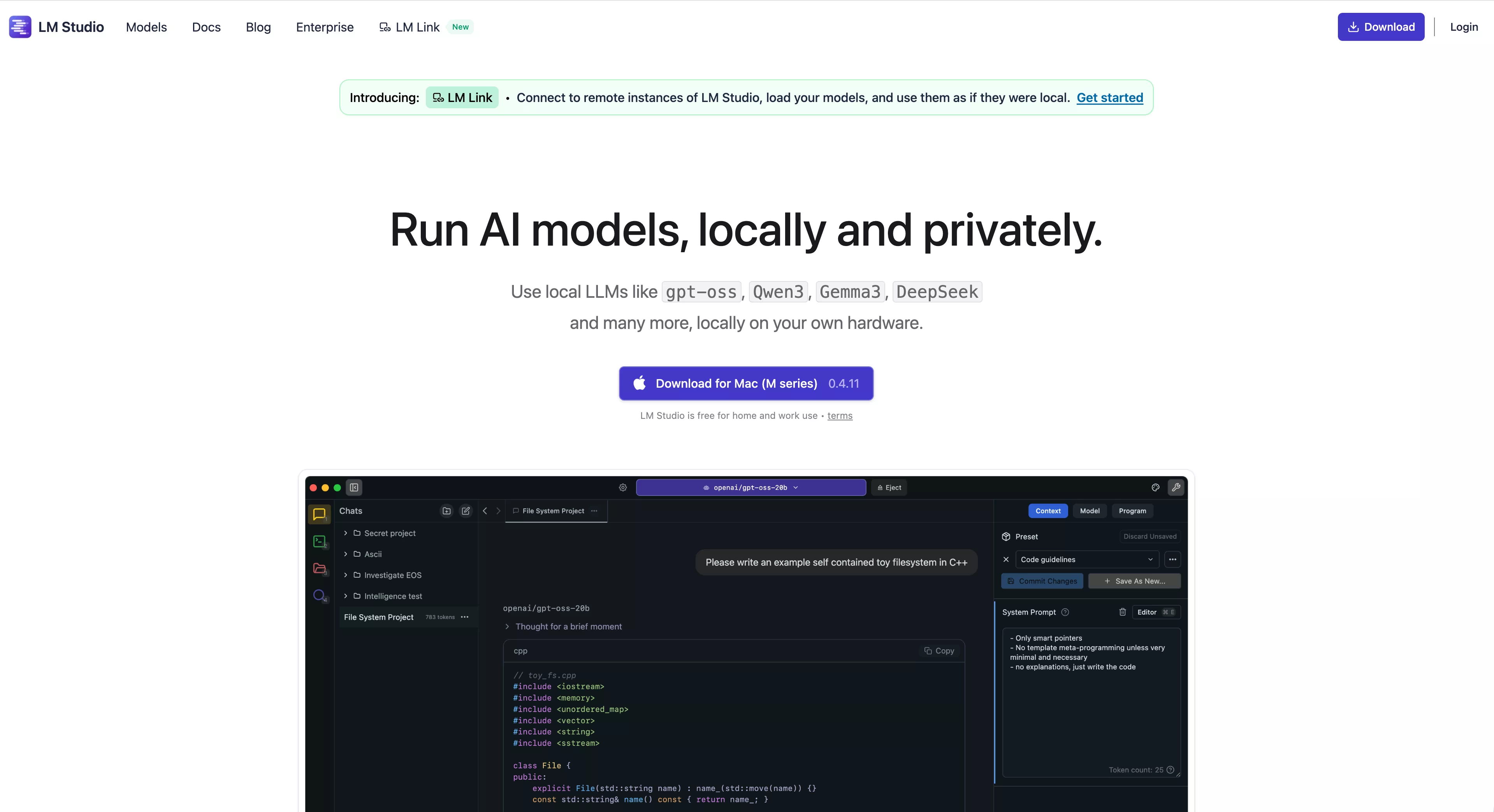


What is LM Studio? Simply put...
Imagine you have a "private chatbot" living on your computer that can talk to you without needing an internet connection, and everything you say in private conversations won't be seen or recorded by anyone. That's what LM Studio can do for you.
Three Core Advantages
| Feature | Description | Benefit to You |
|---|---|---|
| Offline Ready | Works without internet | Use AI on planes/high-speed trains |
| Privacy Secure | Data stays local | Company secrets/personal info are safe |
| Completely Free | No subscription fees, no ads | Unlimited use without worry |
What Can It Do?
✅ Write articles, emails, reports
✅ Organize meeting minutes, summarize long documents
✅ Answer various questions (knowledge Q&A)
✅ Write code, debug programs (useful for programmers)
✅ Translate foreign materials
✅ Generate creative ideas (writing inspiration/marketing copy)
✅ Simulate role-playing game dialogues
Most importantly: All of this requires no internet access and costs nothing!
First Time Use: Done in 3 Steps
Don't worry about complex installation. Follow the steps below, and you'll be up and running in 5 minutes.
Step 1: Download & Install
Open your browser and visit: https://lmstudio.ai/download
Select the corresponding version based on your system:
- Mac Users: Choose "M series (M1/M2/M3/M4)" or "Intel" version
- Windows Users: Directly download the Windows version
- Linux Users: Go to the official website to find the corresponding installer
After downloading:
- Mac: Drag the icon to the "Applications" folder
- Windows: Double-click the installer wizard and click Next following the prompts
- As simple as installing WeChat or QQ!
Step 2: Launch & Select a Model
When opening LM Studio for the first time, you will see three main tabs on the left:
┌─────────────────────┐
│ 🔍 Models           │ ← This is the model supermarket
│ 💬 Chat             │ ← This is the chat interface
│ ⚙️ Settings         │ ← Here you set preferences
└─────────────────────┘
Click the "Models" tab, then enter the name of the model you want to use in the search box, such as:
- "Llama 3.1 8B" → One of the most popular open-source models
- "Qwen3 7B" → Excellent Chinese understanding
- "Gemma 2 9B" → Lightweight model by Google
Choose a model with high ratings and downloads, click the blue "Download" button, and it will start downloading automatically.
Step 3: Start Chatting
Once downloaded, switch to the "Chat" tab:
- Select the model you just downloaded from the top dropdown menu
- Type a question in the input box, e.g., "How's the weather today?"
- Press Enter to send, and the answer will appear in a few seconds
- Just continue chatting, it's similar to WeChat
Typical Dialogue Example:
You: Help me write an email to clients inviting them to next week's product launch
AI: Sure! Here is a draft:

Dear Client,

Hello! Thank you very much for your continued support of our products...

Does this work? Let me know if you need any changes~

You: Looks good, but make the tone more formal, add that the meeting time is Wednesday at 2 PM
AI: Okay, adjusted to the formal version for you:

Dear Client:

Hello! On behalf of our company, we sincerely invite you to attend the product launch held next Wednesday (XX Month XX Day) at 2:00 PM...
That's it! You can get started easily without any technical background.
Daily Usage Scenarios: How Can Ordinary People Use It?
Scenario 1: Workplace Assistant
Problem: Need to write weekly summaries every week, always unsure how to write them well
Solution:
Input in LM Studio:
"I am a product manager, completed the following work this week:
- Designed new feature prototypes
- Coordinated dev team to complete testing
- Collected user experience feedback

Please help me organize this into a professional weekly report containing three parts:
1. Achievements this week
2. Problems encountered and solutions
3. Plans for next week"

Then it will generate a formatted, appropriate weekly report for you to reference or use directly
Scenario 2: Learning Helper
Problem: See English literature but don't understand, checking dictionaries is too slow
Solution:
Directly copy a paragraph of English content in, let it help you:
- Translate into smooth Chinese
- Explain technical terms
- Summarize core points
- Draw out mind map structures

For example: "Please translate this English popular science article about quantum computing into Chinese,
and explain the key concepts in plain language so middle schoolers can understand"
Scenario 3: Life Consultant
Problem: Want to take kids somewhere fun this weekend? Unsure if suitable for elderly
Solution:
Input specific details:
"Our family of four, two adults with one 6-year-old child and one 70-year-old grandma,
want to find a day trip spot near Hangzhou for the weekend, requirements:
- Drive time under 2 hours
- Flat ground suitable for strollers
- Elderly legs not good, cannot climb mountain roads
- Preferably have indoor backup options

Please recommend 3 places and explain pros and cons"
Scenario 4: Creative Inspiration Bank
Problem: Want to write a novel but stuck, don't know how to advance the plot
Solution:
Tell AI current story progress:
"I'm writing a sci-fi novel, the protagonist is a girl who can predict the future,
currently written to her discovering her ability on a rainy night, but she refuses to accept it.
Give me 5 possible subsequent development directions, each direction needs dramatic conflict"

Then choose one to deepen further, or let AI help write specific paragraphs
Scenario 5: Code Assistant for Beginners
Problem: Know a little Python, but often encounter errors and don't know how to fix them
Solution:
Copy error message and relevant code snippet:
"I got this error when using pandas to read a CSV file:
ValueError: Could not convert string to datetime

My code is:
import pandas as pd
df = pd.read_csv('data.csv', parse_dates=['date'])

The date column format should be YYYY-MM-DD, I've checked and it's fine,
why is there an error? Please help me fix it"

AI will tell you possible reasons and provide fixed code
Comparison with Ollama: Which Should I Choose?
Many people hear about both LM Studio and Ollama and don't know which is better. Actually, both can run AI models locally, just different styles.
Intuitive Comparison Table
| Dimension | LM Studio | Ollama | Who Suits You Better? |
|---|---|---|---|
| Interface | ✅ Beautiful GUI, like WeChat | ❌ Mostly command line window | Tech-phobic → LM Studio |
| Install Difficulty | ⭐⭐⭐⭐⭐ Easiest | ⭐⭐⭐ Need to know some terminal commands | Beginner → LM Studio |
| Find Models | ✅ Built-in store, search to download | ❌ Have to find and download online yourself | Want convenience → LM Studio |
| Speed | About the same | About the same | Performance tied |
| Feature Expansion | Enough | 🎯 More advanced options | Love tinkering → Ollama |
| Resource Usage | Slightly higher | Saves a bit more memory | Old PC → Ollama |
Typical User Profile for LM Studio
✓ I am an office worker, just want to quietly use AI to write things
✓ I am a student, don't know programming but need AI-assisted learning
✓ I travel frequently, hope to use it offline on planes
✓ I care about privacy, don't want conversations uploaded to the cloud
✓ I just want to try it out, don't want to spend too much time researching config
Typical User Profile for Ollama
✓ I am a developer, used to operating everything in the terminal
✓ I need to deploy multiple AI services in batches on servers
✓ I already have a complex automation workflow to integrate
✓ I like customizing every detail myself
✓ My computer configuration is high, don't care about that slight memory difference
My Advice
If this is your first time touching local AI models, strongly recommend starting with LM Studio. Its learning curve is almost zero, allowing you to quickly experience the power of local AI without being discouraged by various technical details.
Once you are familiar with the basic usage and feel it's not enough, consider switching to Ollama or other more professional tools later.
Frequently Asked Questions
Q1: Is my computer configuration sufficient?
A: It depends on the size of the model you want to run. Here are some reference standards for you:
| Computer Config | Runnable Models | Expected Speed |
|---|---|---|
| 8GB RAM + Integrated GPU | Llama 3.1 8B, Qwen3 7B | 5-10 words per second |
| 16GB RAM + RTX 3060 | Almost all mainstream models | 20-30 words per second |
| 32GB+ RAM + RTX 4090 | Large models + Multi-task | 40+ words per second |
If you are using Apple M-series chips (M1/M2/M3), even 8GB RAM is basically enough because Apple's GPU optimization is very good.
Q2: How much does downloading models cost?
A: Completely free! You can download and try as much as you want. LM Studio itself is also free, with no hidden charges.
The only thing you might pay for is:
- Network traffic consumed downloading large files (if you are not on broadband)
- If you want to buy better hardware to improve speed
Q3: Will my privacy leak?
A: Absolutely not. All data processing happens on your own device; data will not leave your computer. This is one of its biggest advantages compared to cloud services like ChatGPT.
However, note:
- Only download models from official channels (avoid malware)
- Keep software updated to fix potential vulnerabilities
- Do not casually add third-party plugins from unknown sources
Q4: Can I install LM Studio and Ollama simultaneously?
A: Absolutely! In fact, many experienced users do exactly this:
- Use LM Studio daily for chatting and writing (convenient)
- Use Ollama when scripting or batch processing (flexible)
They do not affect each other and can coexist.
Q5: Can I still use it offline?
A: Yes! Once the model is downloaded locally, you can use it completely offline. This is particularly useful for the following scenarios:
- When taking planes/high-speed trains
- Working in confidential units
- Places with unstable network environments
- Simply wanting faster response speeds
The only exception is needing internet access for the initial model download.
Q6: What if I change computers?
A: Very simple, just copy the old model files to the new computer. Paths are respectively:
- Mac:
~/Library/Application Support/lmstudio/models - Windows:
%APPDATA%\lmstudio\models
Then copy the entire folder to the same location on the new computer, and you can continue seamlessly.
Q7: Can I use it for commercial purposes?
A: Yes. LM Studio is free for both personal and commercial use. But note:
- Some models may have their own commercial restrictions (check the agreement before downloading)
- If you use it to mass-produce content for profit, ensure compliance with copyright laws
Tips: Tricks to Improve Your Experience
Tip 1: Pin Common Models
If you find switching models troublesome, you can set the most used model as the default startup item in "Settings", so you can use it directly upon opening.
Tip 2: Save Important Chats
During the conversation, you can click the save button in the top right corner anytime to record important discussions. These records are saved locally, and you can review them anytime.
Tip 3: Customize System Prompts
Want AI to play a specific role? You can write a "system prompt" in settings, such as:
You are a professional fitness coach, good at formulating reasonable training plans based on user physical conditions. Please use an encouraging tone to give practical and actionable advice.
Afterwards, every conversation it will answer you according to this role.
Tip 4: Adjust Reply Style
On the right panel of the chat interface, you can adjust several parameters to control the AI's reply style:
- Temperature: Lower (0.3-0.5) makes it more rigorous, Higher (0.8-1.0) makes it more creative
- Max Tokens: Control max answer length, set less for short content, more for long articles
Tip 5: Utilize Shortcuts
Remembering a few common shortcuts can make operations faster:
Ctrl/Cmd + Enter: Send messageCtrl/Cmd + N: New chatCtrl/Cmd + S: Save current chatCtrl/Cmd + F: Search history
Final Thoughts
The value of LM Studio lies in turning local AI models that were originally only playable by technicians into a tool that ordinary people can use easily. You don't need to know any programming languages, don't need to configure complex environments, and don't even need to connect to the internet, to have a completely personal, absolutely secure, permanently free AI assistant.
In this era where data is widely collected and cloud services gradually monopolize, being able to master your own data and possess true offline AI capabilities is a very rare freedom. And LM Studio is the key that takes you to this freedom.
Just download and try it now, you will find the world of local AI is far simpler and more interesting than imagined.
This article first appeared in LinkWord AI Tool Review Series Issue 5. Please indicate the source when reprinting.
🔗 Related Links:
- LM Studio Official Download Page
- Online Model Library
- Video Tutorial (Bilibili) Search "LM Studio Intro"
- User Community Discord